How to Read Books on Apple Watch (2026)
Yes, you can read books on Apple Watch, but not with anything built in. watchOS has no ebook app, so you need a third-party reader. With BeeReader, you add a book on your iPhone (your own TXT, EPUB or PDF, or one of about 1,500 free Standard Ebooks classics in the US App Store) and it's sent to your watch, where you read offline and scroll with the Digital Crown.
Can you read books on Apple Watch?
Yes, but you need an app for it. watchOS has no ebook reader of its own. The built-in Audiobooks app only plays audiobooks from Apple Books, and there is no way to open Apple Books ebooks on the watch. Amazon doesn’t make a Kindle app for Apple Watch either (more on that in our guide to Kindle and Apple Watch).
So reading text on your wrist means a third-party reader. Several exist, and they all work in roughly the same way: you get the book onto your iPhone, and the app sends it to your watch. This guide walks through the whole process with BeeReader, the app we make. The screenshots are from the app itself.
What you need
- An Apple Watch with watchOS 11 or later (Series 6, SE 2nd generation and newer, and every Ultra)
- An iPhone with iOS 17 or later. Books are added on the iPhone.
- A book: a DRM-free TXT, EPUB or PDF file, or a free classic from the app’s Standard Ebooks shelf
Step 1: Get a book into BeeReader on your iPhone
Install BeeReader from the App Store. The iPhone app and the Apple Watch app come together. Then choose one of two ways to add a book.
Option A: Pick a free classic
On the iPhone app’s home screen, tap Read Standard Ebooks classics.
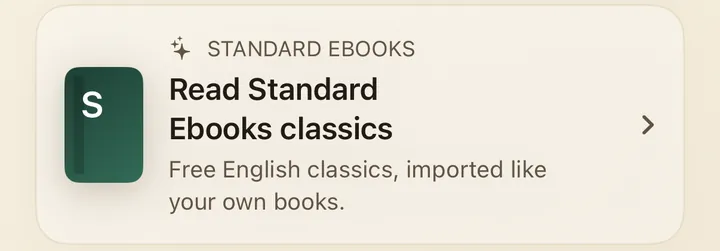
Standard Ebooks is a volunteer project that publishes carefully formatted, free, public-domain classics. In the US App Store, the shelf holds the whole Standard Ebooks catalog, about 1,500 books. It opens with a few titles Recommended for Apple Watch, and you can filter by Category or use Search Standard Ebooks at the bottom. Tap Download and Send, and the book is downloaded and sent to your watch in one go.
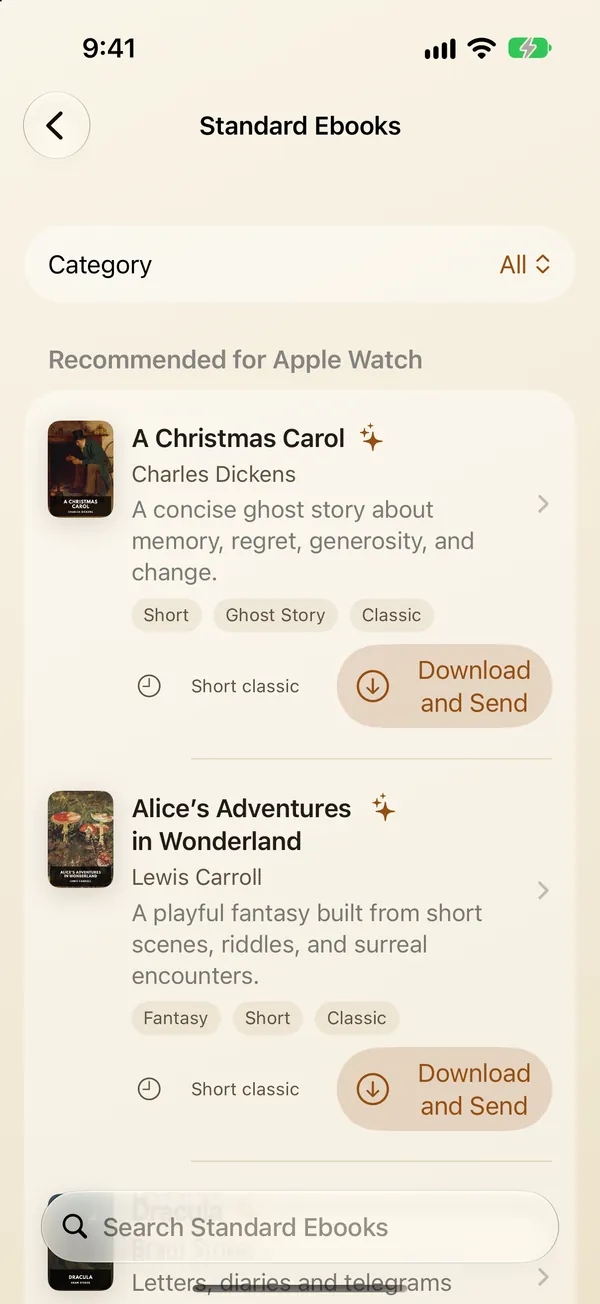
Outside the US, the shelf offers a smaller selection of classics, and the mainland China App Store has no shelf at all. Either way, you can always add your own files.
Option B: Import your own file
Tap Add a Book on the home screen.
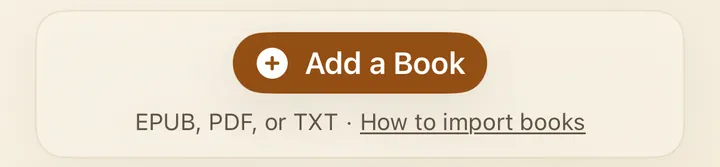
There are three ways to bring a file in, and How to import books in the app explains them:
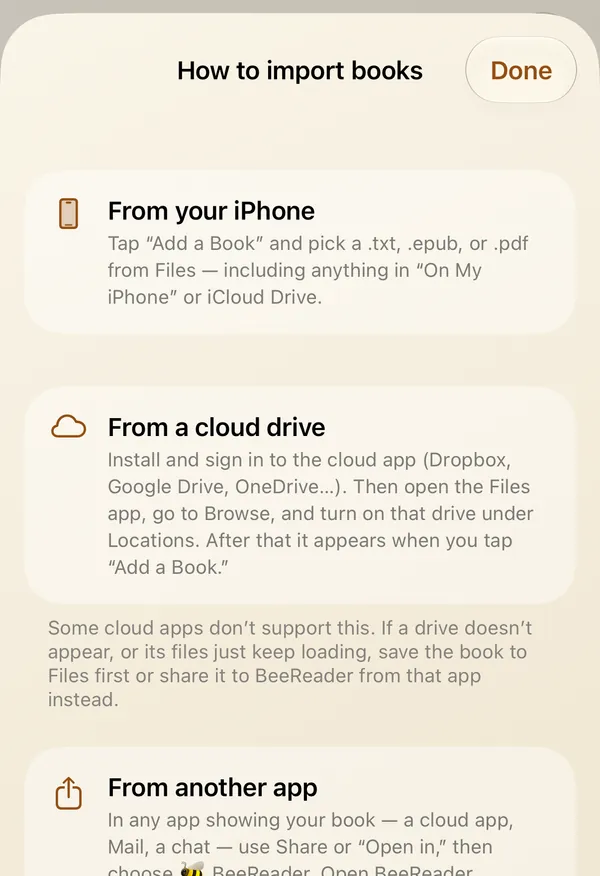
- From Files: tap Add a Book and pick a .txt, .epub or .pdf in the Files picker, including anything in On My iPhone or iCloud Drive. One book at a time.
- From a cloud drive: turn the drive on under Browse → Locations in the Files app, and its files appear when you tap Add a Book. If a drive doesn’t show up, save the book to Files first, or use the next method.
- From another app: in Mail, a chat app or a cloud app, open the book file and use Share or Open in, then choose BeeReader. Open BeeReader afterwards and it imports the book and sends it to your watch.
Looking for books? Besides Standard Ebooks, Project Gutenberg has tens of thousands of free public-domain books as EPUB downloads, and some stores sell new books without DRM. Our Kindle guide lists a few.
Step 2: Send it to your watch
There’s nothing extra to do: once a book is imported or downloaded, BeeReader sends it to your Apple Watch.
- Open BeeReader on your watch first. With the watch app open, a book usually arrives in a few seconds.
- If the watch app isn’t open, the book transfers slowly in the background. It’s still queued, so there’s no need to send it again.
- When it arrives, your iPhone tells you the book is on your watch, and the watch gives a tap.
Step 3: Read on your wrist
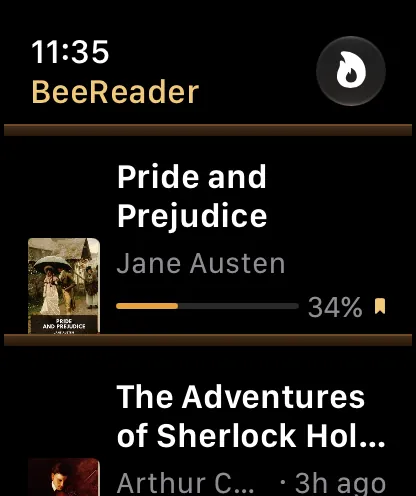
Open BeeReader on the watch and the book is on the shelf. Once a book is there, you can read it with your iPhone left at home and with no connection.
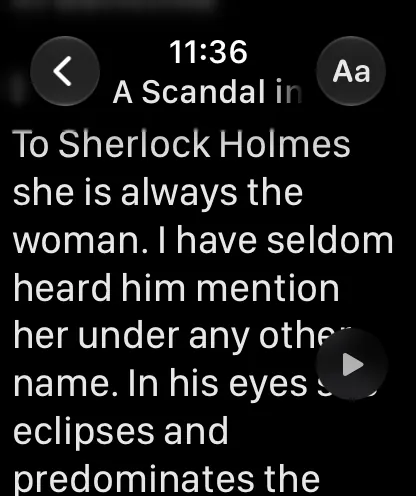
The controls:
- Turn the Digital Crown to scroll.
- Tap the screen to move down one screen. It keeps one line of overlap, so you don’t lose your place.
- Swipe left or right to go to the previous or next page or chapter.
- Touch and hold for Add Bookmark, Contents, Listen and other actions.
Your position is saved automatically, and the book reopens where you left off. Add the BeeReader complication to your watch face to get back to your book with one tap; it shows how far through the book you are.
Text size and themes
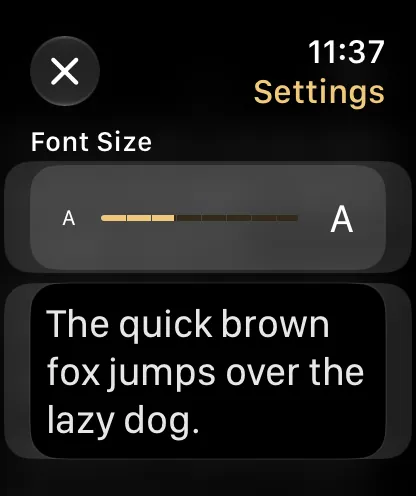
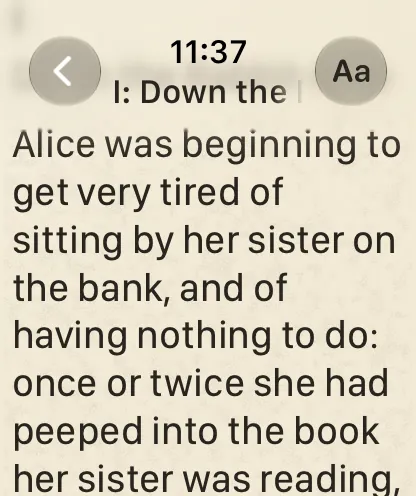
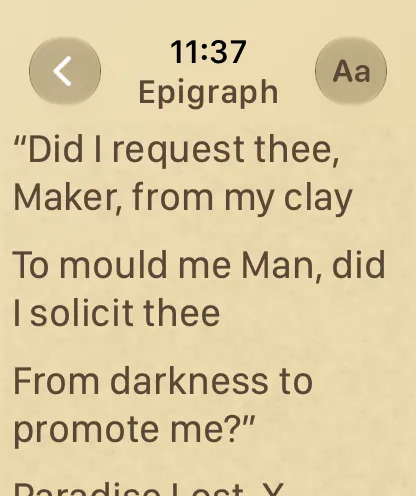
Tap Aa at the top right to open Reading Settings. Text size has 9 steps, and there are four themes: Black, Paper, Sepia and Night (amber text for a dark room).
Auto-scroll
Turn on Enable Auto-Scroll in Reading Settings and a ▶ button appears in the corner of the page. Tap it and the text moves up at a steady pace. There are three speeds, Slow, Medium and Fast, which work out to roughly 180, 300 and 480 words a minute in English. Tap the screen or turn the crown to pause.
Listen
Touch and hold the page and choose Listen, and your watch reads the book aloud with its built-in voice while the page follows along. You need Bluetooth headphones; it doesn’t play through the watch speaker. You can set the speed from 0.25× to 2×, and there’s a sleep timer (15 minutes, or the end of the chapter).
Tips for each file type
- EPUB usually works best. BeeReader uses the book’s own table of contents for chapters. Pictures appear as cards; touch and hold one and choose View Image. Pictures load from your iPhone, so if you want them away from your phone, turn on Send Pictures with Books in the iPhone app’s settings.
- TXT files need to be saved as UTF-8 (or UTF-16). Other encodings come out as garbled text. Chapters are found from heading lines such as “Chapter 1” or “Chapter One”; without them, the book is split into sections of about 4,000 characters.
- PDF works when the PDF contains real text. BeeReader rejoins broken lines and removes running headers and footers so the text reflows on the small screen. Scanned PDFs, where each page is an image, can’t be imported.
- DRM-protected books (Kindle, Apple Books and most store-bought ebooks) can’t be opened.
What reading on a watch is really like
A watch screen is small, and it’s best for short sessions: a commute, a queue, a few pages before bed. The real advantage is that the book is always on your wrist, so you can read a page when your phone is in a bag or across the room. For an hour of reading, a phone, tablet or e-reader is still more comfortable.
What it costs
BeeReader is free to download, and your first 3 books are free, including books from the Standard Ebooks shelf. After that, BeeReader Pro is a one-time purchase for unlimited books, with no subscription. Sending a book you already added to a new watch doesn’t count as a new book.
Frequently asked questions
Can I read Kindle books on Apple Watch?
No. There is no Kindle app for Apple Watch, and Kindle books are protected by DRM, so other apps can't open them. Our guide to Kindle and Apple Watch covers the alternatives.
Can I read Apple Books on Apple Watch?
Not ebooks. The Audiobooks app on Apple Watch plays audiobooks from Apple Books, but there is no way to read Apple Books ebooks on the watch.
Do I need my iPhone nearby to read?
No. Once a book is on your watch, you can read it with your iPhone at home and without a connection. You do need the iPhone to add new books.
Can Apple Watch read books aloud?
With BeeReader, yes. Touch and hold the page and choose Listen. You need Bluetooth headphones; it doesn't play through the watch speaker.
Which file formats work?
BeeReader reads TXT, EPUB and PDF. EPUB usually works best. Scanned PDFs, DRM-protected books and formats like MOBI or AZW3 don't work.
Is it free?
Your first 3 books are free, including books from the Standard Ebooks shelf. After that, BeeReader Pro is a one-time purchase with no subscription.